
 हिन्दी
 Bahasa Indonesia
 Español
 Português
 বাংলা
 العربية
 Français
 Deutsch
 اردو
 Tiếng Việt
How to use it
- Sign on plain white paper with a dark pen.
- Photograph it in daylight, straight on, and crop close to the signature.
- Pick a size, drop the photo, and download.
Why signatures get rejected
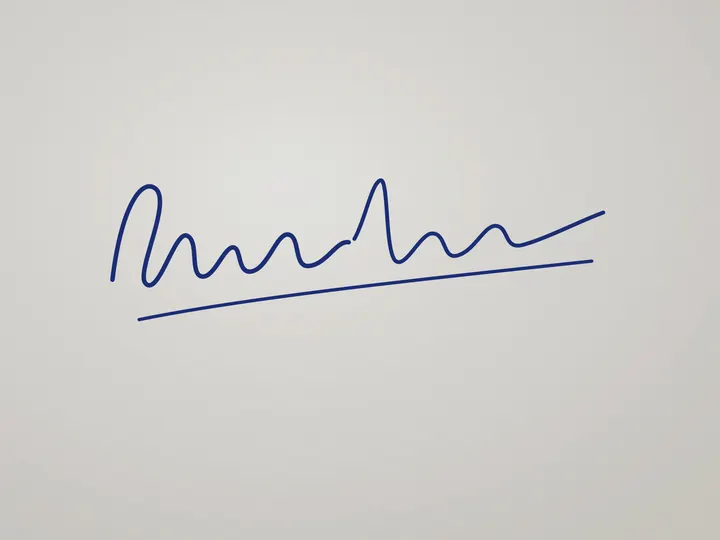
A phone photo of a signature usually has grey, uneven paper and shadows. When that is compressed to 20 KB, the grey turns blotchy and thin strokes fade. Forms reject it as unclear.
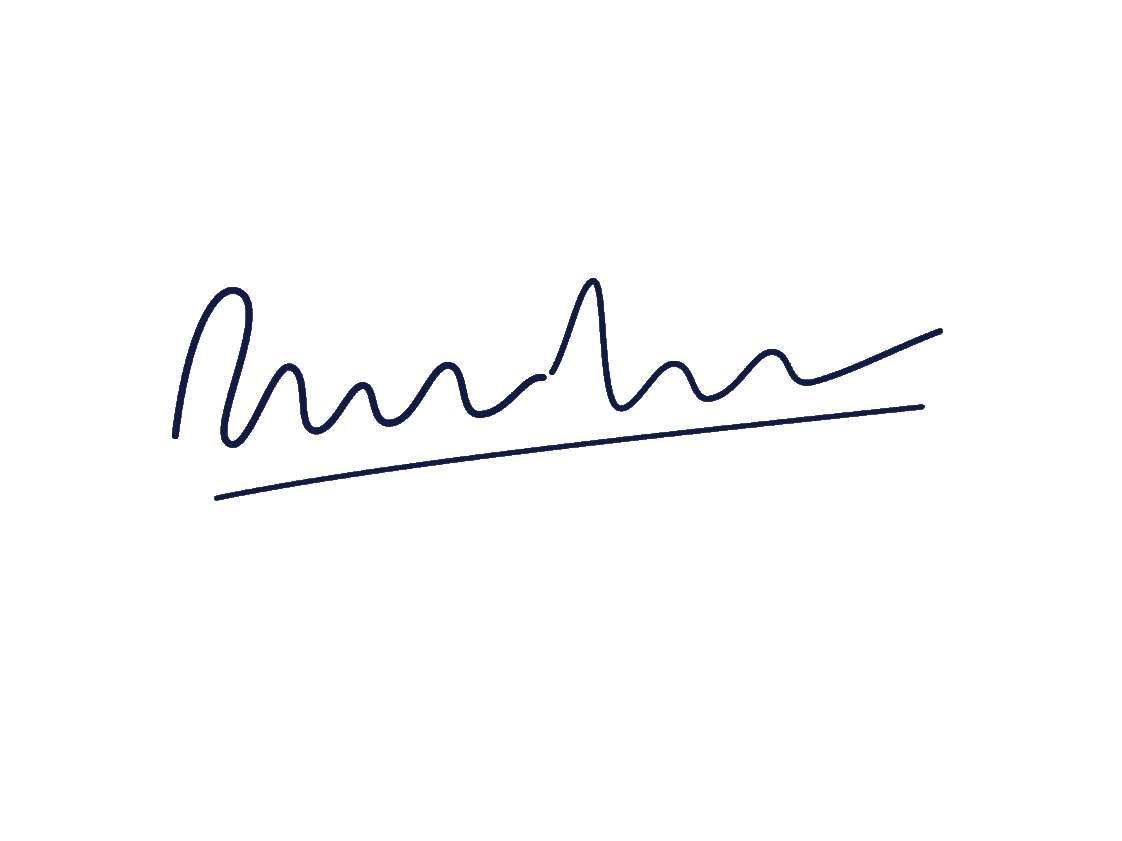
This tool turns the light background pure white before compressing. Plain white compresses to almost nothing, so nearly all of the file size goes to the ink, which stays dark and crisp.
Tips for a clean signature photo
Use a black or dark blue pen and sign a little larger than usual. Shoot in daylight from directly above, avoiding your phone's shadow. Crop tightly so the signature fills most of the image.
Questions
My signature looks faint after resizing. What can I do?
Sign again with a thicker, darker pen and photograph it in brighter light. The clean-background step relies on a clear difference between ink and paper.
Can I make the signature black and white?
Yes. Tick "Black and white" under Settings. Some forms ask for black and white signatures, and it also makes the file smaller.
Is my photo uploaded to a server?
No. The resizing runs inside your browser with JavaScript, so the image never leaves your device. Once the page has loaded, resizing keeps working even if you go offline.